> For the complete documentation index, see [llms.txt](https://docs.mogoplus.ai/llms.txt). Markdown versions of documentation pages are available by appending `.md` to page URLs; this page is available as [Markdown](https://docs.mogoplus.ai/instructions/api-management.md).
# API Management
Helps you with the steps involved in getting the required api credentials
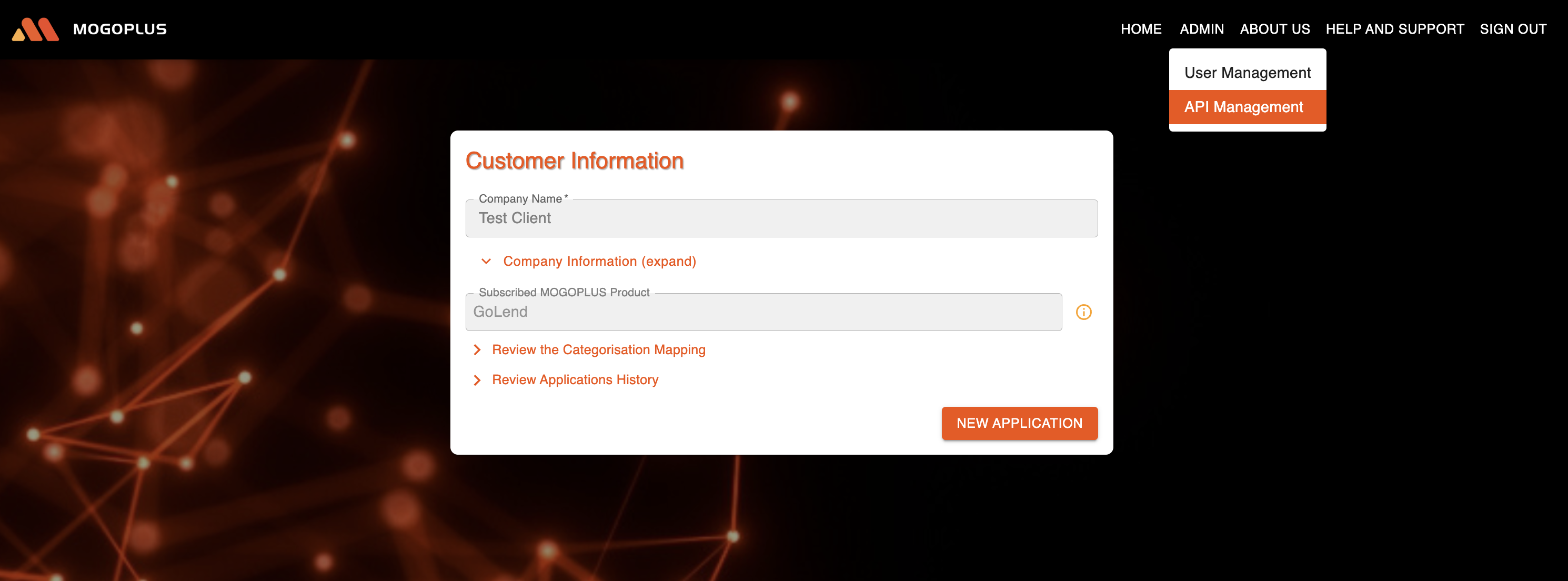
After logging, you will be able to see "ADMIN" button on MOGOPLUS homepage. Upon clicking "ADMIN" button, an Admin will be able to view the "API Management" link.
API Management link
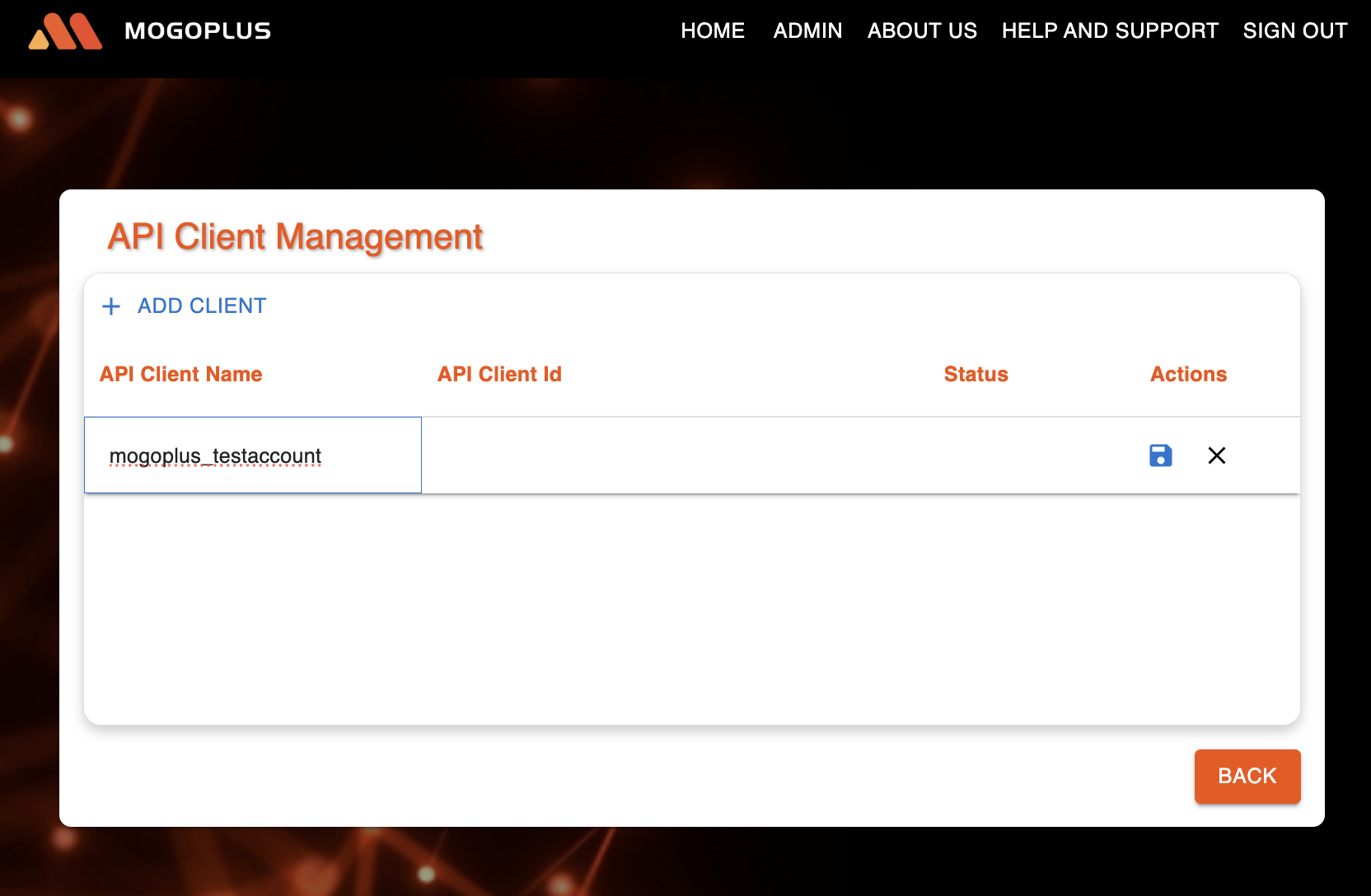
Upon clicking "API Management" link, an Admin will be able to add client by clicking "ADD CLIENT" and then enter the API Client Name.
Add a client name
On clicking save button, client\_id and client\_secret (which are required to use the api's) will be generated.
{% hint style="info" %}
**Important Note:**
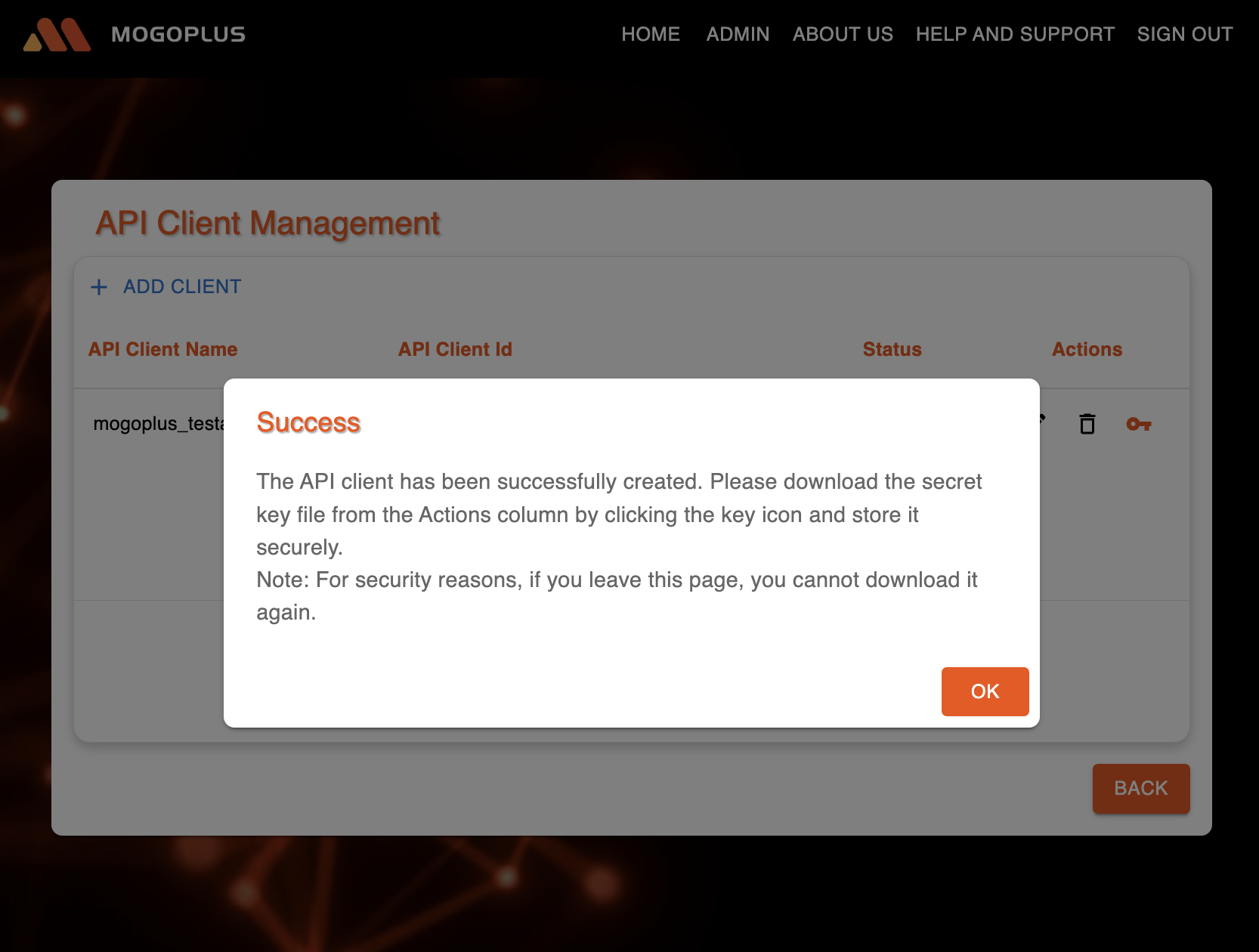
Once you leave this screen, the generated credentials will no longer be available. Please download them before navigating away from this page
{% endhint %}
Success message confirming generation of client credentials
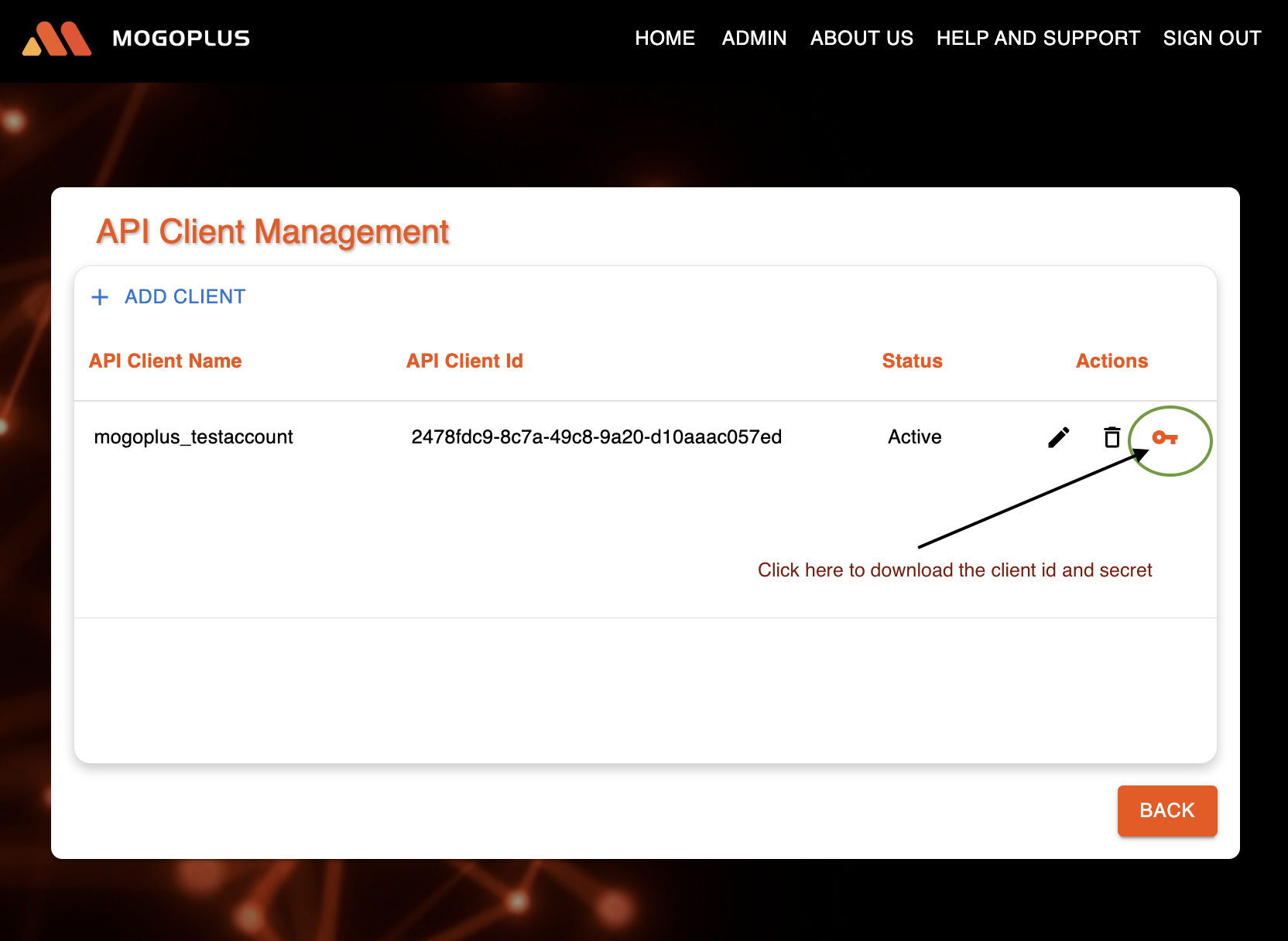
On clicking the key icon, the client id and secret will be downloaded in the form of a JSON file to your machine.
Client credentials-download option
Downloaded file
The contents of the file will look like below:
`{`\
`"clientName": "Mogoplus_testaccount",`\
`"clientId": "782e12aa-23d3-11c0-8452-111114a14e13",`\
`"clientSecret": "aaaaaaaa-8b36-471f-c818-d1d2e46b20d4"`\
`}`
The above credentials (Client ID and Client Secret) must be used to invoke the Authentication API to obtain an access token, which should then be included when submitting data and fetching the report
---
# Agent Instructions
This documentation is published with GitBook. GitBook is the documentation platform designed so that both humans and AI agents can read, navigate, and reason over technical content effectively. Learn more at gitbook.com.
## Querying This Documentation
If you need additional information that is not directly available in this page, you can query the documentation dynamically by asking a question.
Perform an HTTP GET request on the current page URL with the `ask` query parameter, and the optional `goal` query parameter:
```
GET https://docs.mogoplus.ai/instructions/api-management.md?ask=&goal=
```
`ask` is the immediate question: it should be specific, self-contained, and written in natural language.
`goal` is optional and describes the broader end goal you are ultimately trying to accomplish on behalf of the user. GitBook uses it to tailor the answer towards what is most useful for that goal.
The response will contain a direct answer to the question and relevant excerpts and sources from the documentation.
Use this mechanism when the answer is not explicitly present in the current page, you need clarification or additional context, or you want to retrieve related documentation sections.